Quickstart
Preprequisites
The quickstart assumes user have access to Vertex AI Pipelines service.
Install the toy project with Vertex AI Pipelines support
It is a good practice to start by creating a new virtualenv before installing new packages. Therefore, use virtalenv command to create new env and activate it:
$ virtualenv venv-demo
created virtual environment CPython3.8.12.final.0-64 in 764ms
  creator CPython3Posix(dest=/home/getindata/kedro/venv-demo, clear=False, no_vcs_ignore=False, global=False)
  seeder FromAppData(download=False, pip=bundle, setuptools=bundle, wheel=bundle, via=copy)
    added seed packages: pip==22.0.4, setuptools==60.9.3, wheel==0.37.1
  activators BashActivator,CShellActivator,FishActivator,NushellActivator,PowerShellActivator,PythonActivator
$ source venv-demo/bin/activate
Then, kedro must be present to enable cloning the starter project, along with the latest version of kedro-kubeflow plugin and kedro-docker (required to build docker images with the Kedro pipeline nodes):
$ pip install 'kedro>=0.18.1,<0.19.0' kedro-vertexai kedro-docker
With the dependencies in place, let’s create a new project:
$ kedro new --starter=spaceflights

Project Name:
=============
Please enter a human readable name for your new project.
Spaces and punctuation are allowed.
 [New Kedro Project]: Vertex AI Plugin Demo

Repository Name:
================
Please enter a directory name for your new project repository.
Alphanumeric characters, hyphens and underscores are allowed.
Lowercase is recommended.
 [vertex-ai-plugin-demo]:

Python Package Name:
====================
Please enter a valid Python package name for your project package.
Alphanumeric characters and underscores are allowed.
Lowercase is recommended. Package name must start with a letter
or underscore.
 [vertex_ai_plugin_demo]:

Change directory to the project generated in /Users/getindata/vertex-ai-plugin-demo

A best-practice setup includes initialising git and creating a virtual environment before running ``kedro install`` to install project-specific dependencies. Refer to the Kedro documentation: https://kedro.readthedocs.io/
Finally, go the demo project directory and ensure that kedro-vertexai plugin is activated:
$ cd vertexai-plugin-demo/
$ pip install -r src/requirements.txt
(...)
Requirements installed!

$ kedro vertexai --help
Usage: kedro vertexai [OPTIONS] COMMAND [ARGS]...

  Interact with Google Cloud Platform :: Vertex AI Pipelines

Options:
  -e, --env TEXT  Environment to use.
  -h, --help      Show this message and exit.

Commands:
  compile         Translates Kedro pipeline into JSON file with VertexAI...
  init            Initializes configuration for the plugin
  list-pipelines  List deployed pipeline definitions
  run-once        Deploy pipeline as a single run within given experiment...
  schedule        Schedules recurring execution of latest version of the...
  ui              Open VertexAI Pipelines UI in new browser tab
Build the docker image to be used in Vertex AI Pipelines runs
First, initialize the project with kedro-docker configuration by running:
$ kedro docker init
This command creates a several files, including .dockerignore. This file ensures that transient files are not included in the docker image and it requires small adjustment. Open it in your favourite text editor and extend the section # except the following by adding there:
!data/01_raw
Ensure right requirements.txt
You need to make sure that before you build the docker image and submit the job to Vertex AI Pipelines, all of your project’s Python package requirements are properly saved in requirements.txt, that includes this plugin. Ensure that the src/requirements.txt contains this line
kedro-vertexai
Adjusting Data Catalog to be compatible with Vertex AI
This change enforces raw input data existence in the image. While running locally, every intermediate dataset is stored as a MemoryDataSet. When running in VertexAI Pipelines, there is no shared-memory, Kedro-VertexAI plugin automatically handles intermediate dataset serialization - every intermediate dataset will be stored (as a compressed cloudpickle file) in GCS bucket specified in the vertexai.yml config under run_config.root key.
Adjusted catalog.yml should look like this (note: remove the rest of the entries which comes with the spaceflights starter - you need only companies,reviews,shuttles.)
companies:
  type: pandas.CSVDataSet
  filepath: data/01_raw/companies.csv

reviews:
  type: pandas.CSVDataSet
  filepath: data/01_raw/reviews.csv

shuttles:
  type: pandas.ExcelDataSet
  filepath: data/01_raw/shuttles.xlsx
All intermediate and output data will be stored in the location with the following pattern:
gs://<run_config.root from vertexai.yml>/kedro-vertexai-temp/<vertex ai job name>/*.bin
Of course if you want to use intermediate/output data and store it a location of your choice, add it to the catalog. Be aware that you cannot use local paths - use gs:// paths instead.
Disable telemetry or ensure consent
Latest version of Kedro starters come with the kedro-telemetry installed, which by default prompts the user to allow or deny the data collection. Before submitting the job to Vertex AI Pipelines you have two options:
allow the telemetry by setting
consent: truein the.telemetryfile in the project root directorydisable telemetry by removing
kedro-telemetryfrom thesrc/requirements.txt.
If you leave the .telemetry file with default consent: false, the pipeline will crash in runtime in Vertex AI, because kedro-telemetry will spawn an interactive prompt and ask for the permission to collect the data.
The usage of ${run_id} is described in section Dynamic configuration support.
Build the image
Execute:
kedro docker build --docker-args "--build-arg BASE_IMAGE=python:3.8-buster"
When execution finishes, your docker image is ready. If you don’t use local cluster, you should push the image to the remote repository:
docker tag vertex-ai-plugin-demo:latest remote.repo.url.com/vertex-ai-plugin-demo:latest
docker push remote.repo.url.com/vertex-ai-plugin-demo:latest
Run the pipeline on Vertex AI
First, run init script to create the sample configuration. There are 2 parameters:
PROJECT_IDwhich is ID of your Google Cloud Platform project - can be obtained from GCP Console or from command line (gcloud config get-value project)REGION- Google Cloud Platform region in which the Vertex AI pipelines should be executed (e.g.europe-west1).
kedro vertexai init <GCP PROJECT ID> <GCP REGION>
(...)
Configuration generated in /Users/getindata/vertex-ai-plugin-demo/conf/base/vertexai.yaml
Then adjust the conf/base/vertexai.yaml, especially:
image:key should point to the full image name (likeremote.repo.url.com/vertex-ai-plugin-demo:latestif you pushed the image at this name).root:key should point to the GCS bucket that will be used internally by Vertex AI and the plugin itself, e.g.your_bucket_name/subfolder-for-vertexai
Finally, everything is set to run the pipeline on Vertex AI Pipelines. Execute run-once command:
$ kedro vertexai run-once
2022-03-18 13:44:27,667 - kedro_vertexai.client - INFO - Generated pipeline definition was saved to /var/folders/0b/mdxthmvd74x90fp84zl4mb5h0000gn/T/kedro-vertexai2jyrt89b.json
See the Pipeline job here: https://console.cloud.google.com/vertex-ai/locations/europe-west1/pipelines/runs/vertex-ai-plugin-demo-20220318124425?project=gid-ml-ops-sandbox
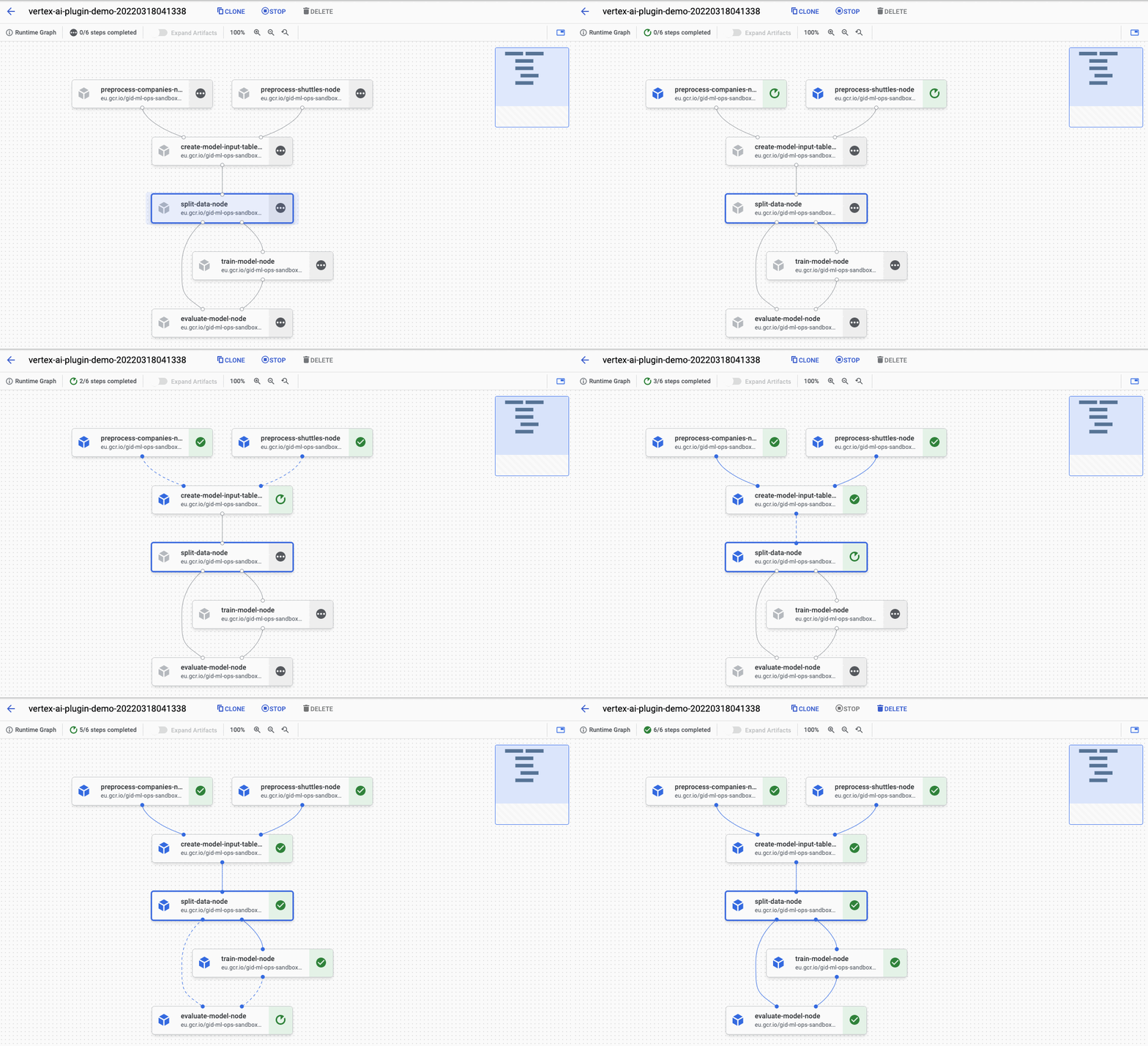
As you can see, the pipeline was compiled and started in Vertex AI Pipelines. When you visit the link shown in logs you can observe the running pipeline:
Log datasets to Vertex AI Metadata
The plugin implements custom kedro_vertexai.vertex_ai.datasets.KedroVertexAIMetadataDataset dataset that creates an Vertex AI Artifact.
It allows to specify any Kedro dataset in the base_dataset argument, and it uses its _save and _load methods for the io.
The base dataset arguments are passed in base_dataset_args argument as dictionary. The created artifact is associated with Vertex AI run id and job name as metadata, and additional metadata can be specified in the metadata argument.
The dispaly_name and schema arguments are used for the artifact creation, please reference Vertex AI docs to learn more about them.